

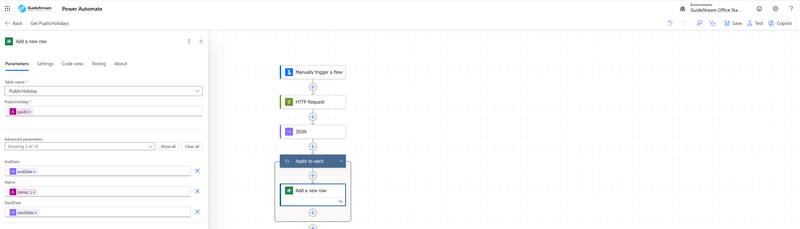
Power Automate is a versatile tool for automating workflows and integrating external services in Office 365 – all without any programming knowledge. One of its most useful features is the ability to send HTTP requests to retrieve and process data from external APIs. In this blog post, we’ll guide you step by step on how to use an HTTP request to fetch data from the PublicHolidays API (https://openholidaysapi.org/swagger/index.html) and store it in a Dataverse table. By the end of this tutorial, you’ll know how to set up a flow, retrieve API data, parse it, and store it in various formats. Let’s get started!
Step 1: Create a New Flow
First, we’ll create a new flow in Power Automate. For this example, we’ll use a manually triggered flow for simplicity.
- Create a New Flow:
- Open the Power Automate portal and click on "Create" on the left.
- Select "Instant Cloud Flow" to create a flow that can be started manually.
- Start creating a new Instant Cloud Flow.
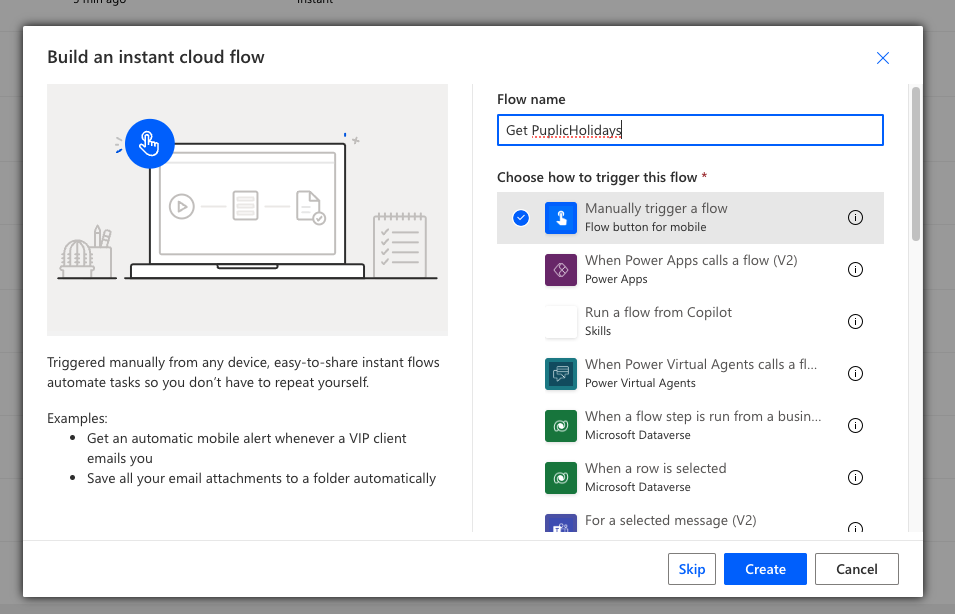
Create a flow with an manually trigger
- Name the Flow:
- Give your flow the name "Get PublicHolidays".
- Select a Trigger:
- Choose "Manually trigger a flow" as the trigger. This allows you to start the flow manually at any time. Later, you could automate the trigger, but for simplicity, we’ll stick with a manual trigger here.
- Add an HTTP Request:
- Click the "+" symbol to add a new action.
- Search for "HTTP" and select the "HTTP Request" action.
- Configure the HTTP request to send a GET request to the PublicHolidays API. Use the URL https://openholidaysapi.org/PublicHolidays with query parameters to filter the data (e.g., country, state, and time period).
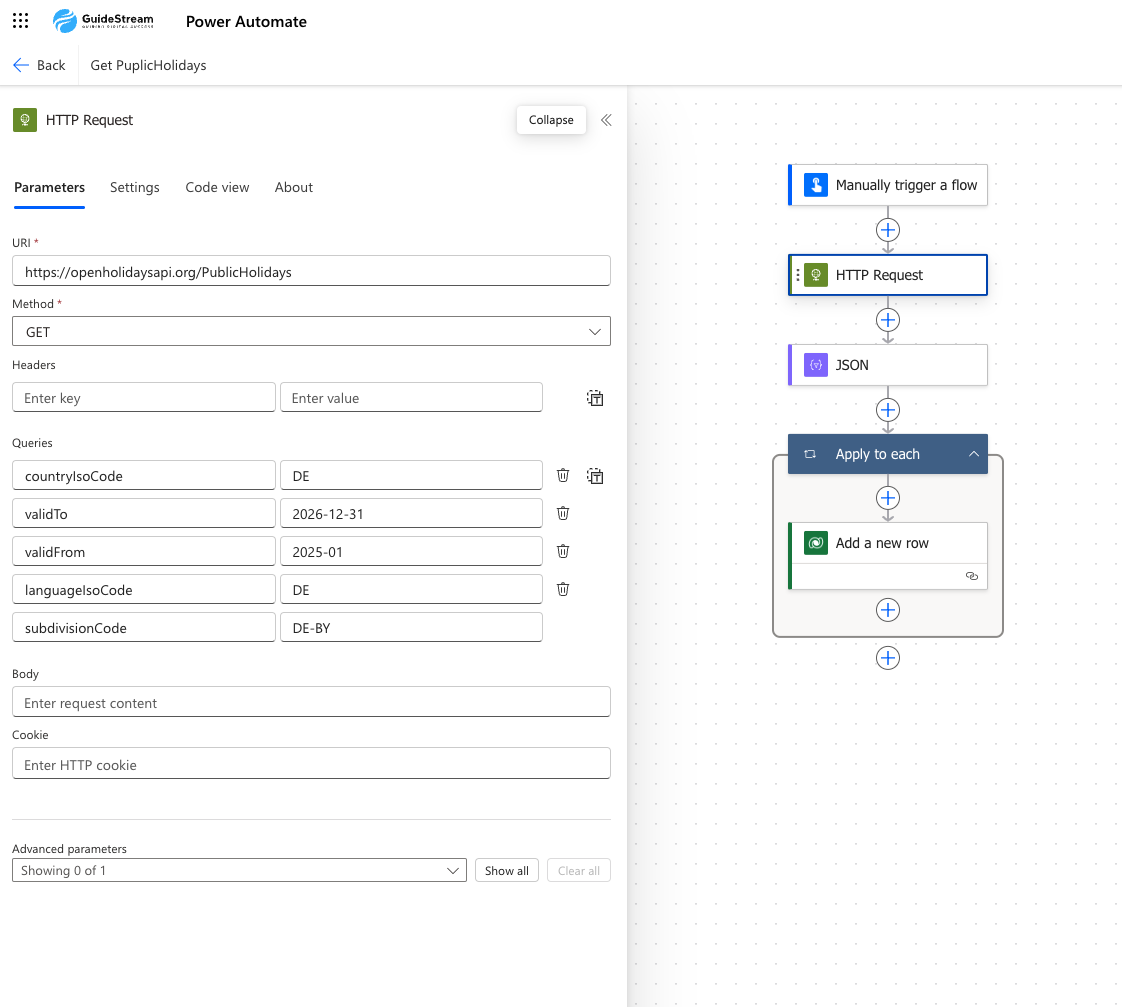
Configure the HTTP-Request with the API-Endpoint and Query Parameters
- Configure the HTTP Request action with the API endpoint and query parameters. Here’s an example configuration:
- URI: https://openholidaysapi.org/PublicHolidays
- Method: GET
- Query Parameters:
- countryIsoCode: "DE" (for Germany)
- validFrom: "2025-01-01"
- validTo: "2026-12-31"
- languageIsoCode: "DE"
- subdivisionCode: "DE-BY" (for Bavaria)
Step 2: Parse JSON Data
After the HTTP request retrieves the data from the API, we need to parse the JSON response to process the data further.
- Add a Parse JSON Action:
- Add a "Parse JSON" action after the HTTP Request.
- In the "Content" field, select the "Body" from the HTTP Request output.
- Insert {} into the schema text field to create an empty schema.
- Use the Parse JSON action to process the HTTP request response.
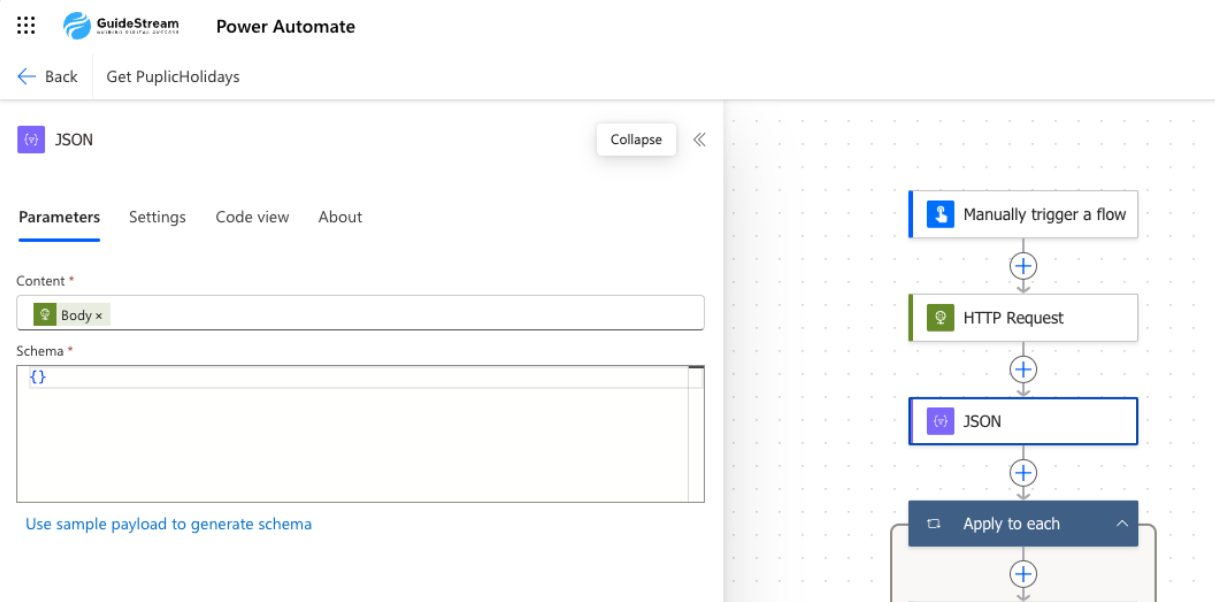
- Map the Data:
- Once the schema is generated, you can use the parsed data (e.g., startDate, endDate, name) in the following steps.
Step 3: Store the Data
Now that the data is parsed, you can store it in different formats. We’ll show you two options: a Dataverse table.
- Option 1: Store Data in a Dataverse Table
Dataverse is a powerful platform for data storage and management, ideal for integration with other Microsoft services.- Create a New Row:
- Add a "Create a new row" action for Dataverse after the Parse JSON action.
- Select the table where the data should be stored (e.g., "PublicHoliday").
- Map the parsed data to the table columns:
- startDate → Start Date: items('Apply_to_each')?['startDate']
- endDate → End Date: items('Apply_to_each')?['endDate']
- name → Name: items('Apply_to_each')?['Name'][0]?['text']
- Create a New Row:
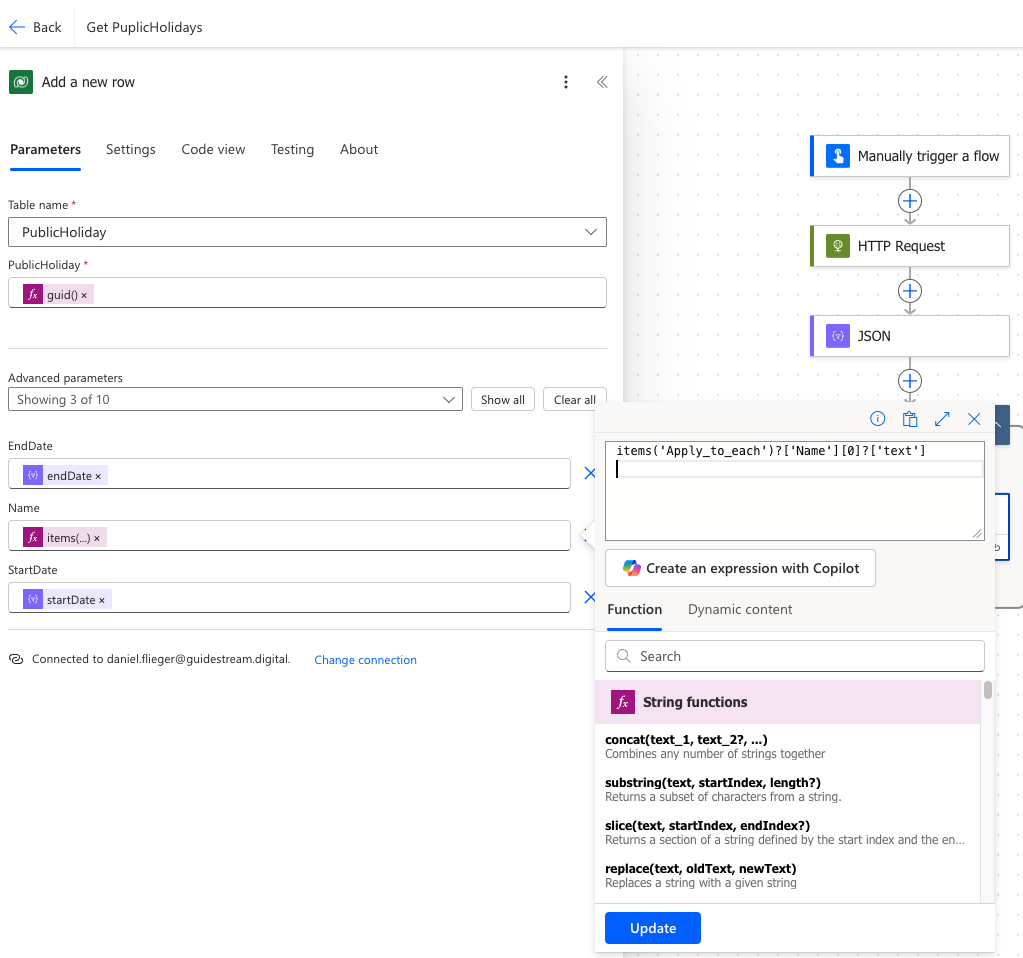
items('Apply_to_each')?['Name'][0]?['text']
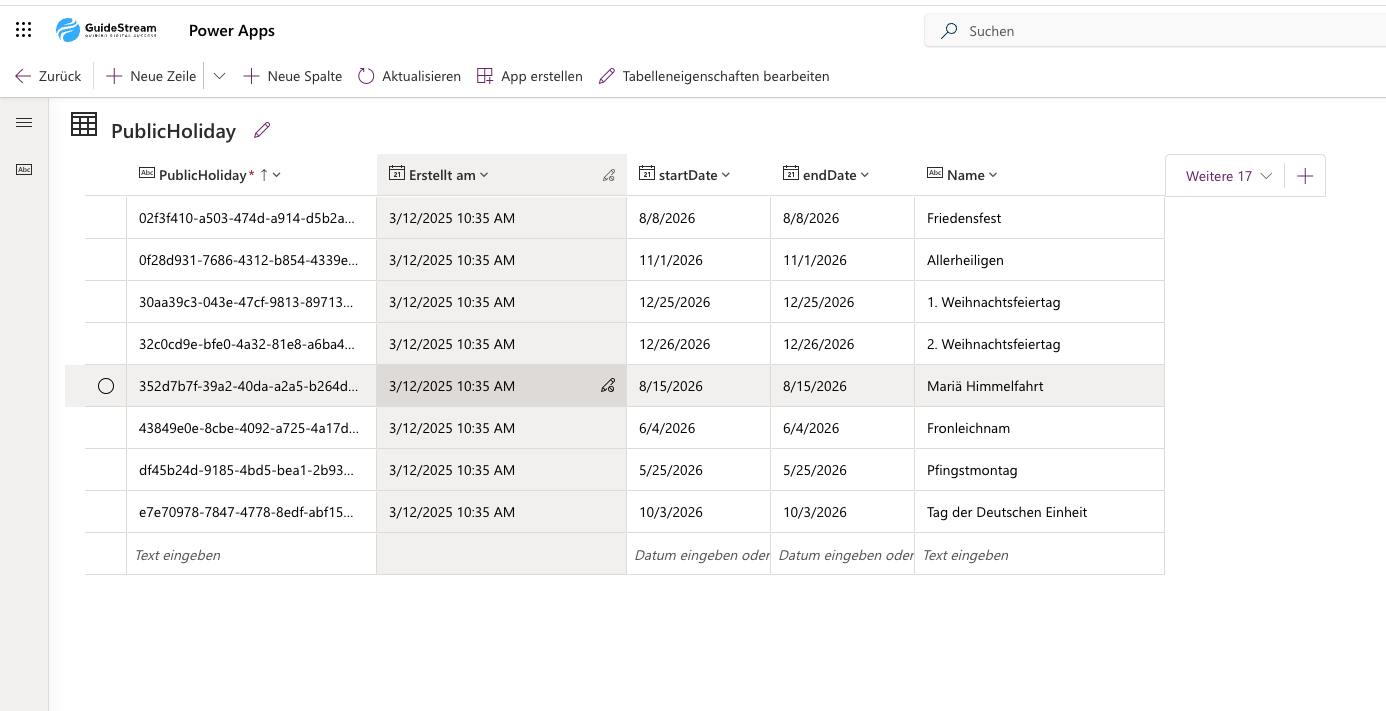
Dataverse table
- Example of a Dataverse table with stored holiday data.
- Option 2: Store Data in an Excel Sheet
If you prefer to store the data in Excel, Power Automate makes this easy as well.- Add an Excel Action:
- Instead of the Dataverse action, add an "Add a row into a table" action for Excel.
- Specify the location of the Excel file (e.g., OneDrive) and the table within the sheet.
- Map the parsed data to the columns in the Excel table.
- Configure the Action:
- Ensure the Excel table has the correct column headers (e.g., "Start Date", "End Date", "Name").
- Add an Excel Action:
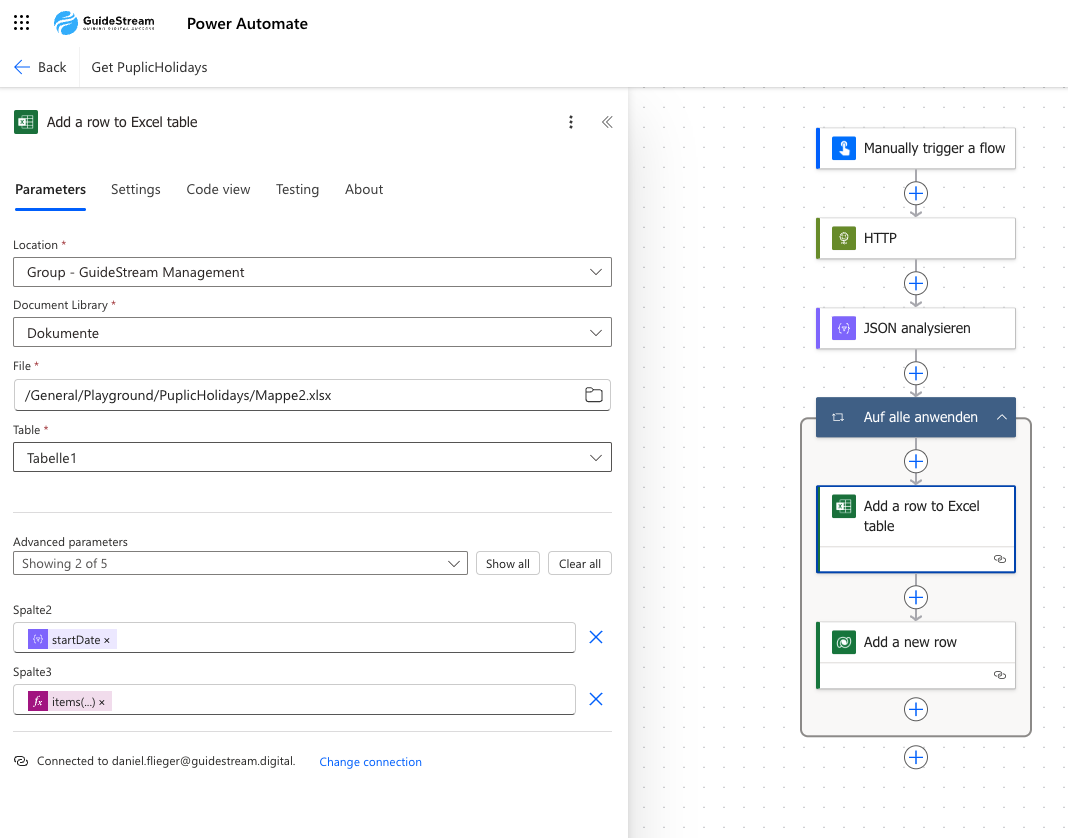
- The complete flow diagram shows the sequence of actions.
- Test the Flow:
- Save the flow and test it using the "Test" button.
- Manually trigger the flow and verify that the data is correctly retrieved and stored.
Conclusion
In this blog post, you’ve learned how to use Power Automate to send an HTTP request to the PublicHolidays API, parse the JSON data, and store it in a Dataverse table, an Excel sheet, or a SharePoint list. This workflow is a perfect introduction to exploring the possibilities of automation with external APIs.
Now it’s your turn! Put your knowledge into action and create your own flows to streamline work processes. Need help with your next automation project? Visit us at Guidestream Digital – we’ll assist you in bringing your ideas to life and optimizing your workflows.